Show Mobile Navigation

(Tab Widget 1)

About

Latest In

Saturday, 26 October 2013

IM+ updated for iOS 7, makes Off-the-Record Messaging free for all chats

Hybrid - 00:37
IM+ updated for iOS 7, makes Off-the-Record Messaging free for all chats
IM+ is a messenger client for both iPhone and iPad that can combine all your favorite instant messenger clients into one easy to manage place. The new 8.0 version brings with it an updated interface that's been designed with iOS 7 in mind as well as making encrypted messaging free for everyone.
Both the free and paid versions of IM+ were updated to version 8.0. The main differences between the two is that the free version will be ad supported. If you want Skype integration, you'll also need to opt for the premium version.
You can subscribe to IM+'s own SMS replacement service, Beep from within either of the apps as an in-app purchase. Off-the-Record messaging which is encrypted on both ends, has been made free as well for either paid or free users of the IM+ service. There's nothing for you to pay for or configure any longer.
IM+ also support iCloud sync so if you download an IM+ client on another iOS device, there's no need to configure all your accounts again. As long as the device is linked to your iCloud account, all your settings will be transferred over with no effort on your part.

Screens for iOS 7 updated for Bluetooth keyboards, search, hot corners, and more!

Hybrid - 00:36
Screens, considered by many to be the best VNC app for iOS and Mac, has been updated to version 3.1 and it brings with it a bevy of great new, and updated, features. You've got as-full-as-iOS-allows Bluetooth keyboard support, you can search through your saved screens, AirPlay Mirroring performance has been improved, Hot Corner support has been added, so have Disconnect Actions, and there are improved pasteboard transfers. It's also 64-bit on iPhone 5s, iPad mini Retina, and iPad Air. For more on the update, check out Luc Vandal's blog post over at Edovia.
If you already have Screens, the update is ready and waiting for you. If not, and you're looking for a great way to access your Mac or Windows PC remotely, get it now!

How good Android data leads to bad iPad analysis

Hybrid - 00:20
Industry analyst disputes bad info about iPad marketshare
Looking at tablet sales numbers, it's easy to assume that the iPad is already badly eclipsed by Android devices. But a closer look at those numbers reveal a different story, according to tech industry analyst Ben Bajarin, who posts his thoughts at Techopinions.com.
Bajarin notes that the biggest chunk of Android tablet sales aren't coming from a single vendor, but from "Other," or as he describes them, "the no-name brand white-box tablets being sold at razor thin margins mostly in China and other emerging markets." And what consumers are doing with those is very, very limited. "...they aren’t actually showing up on anyone’s radar when it comes to apps and services in a meaningful way," Bajarin writes.
Excluding the "other" category from tablet sales, Apple's share of the market jumps from about one-third to more than half. What's more, his research suggests that many first time buyers of low-cost tablets have buyer's remorse and plan to spend more to get something better next time - a glowing opportunity for Apple.
Apple certainly faces very serious challenges from Samsung and other tablet vendors moving forward, and needs to stay ahead of them through innovation and the continued development and support of a compelling user experience and ecosystem that makes customers want to keep buying their products.
But as Bajarin points out, part of his job - and the job of other analysts (and those of us reporting on it) - is to provide good context for the data. Too often, "data that gets thrown around in the public sphere clouds the truth rather than brings clarity to it."

Unibox for Mac takes a new approach to how you view and interact with email

Hybrid - 00:01
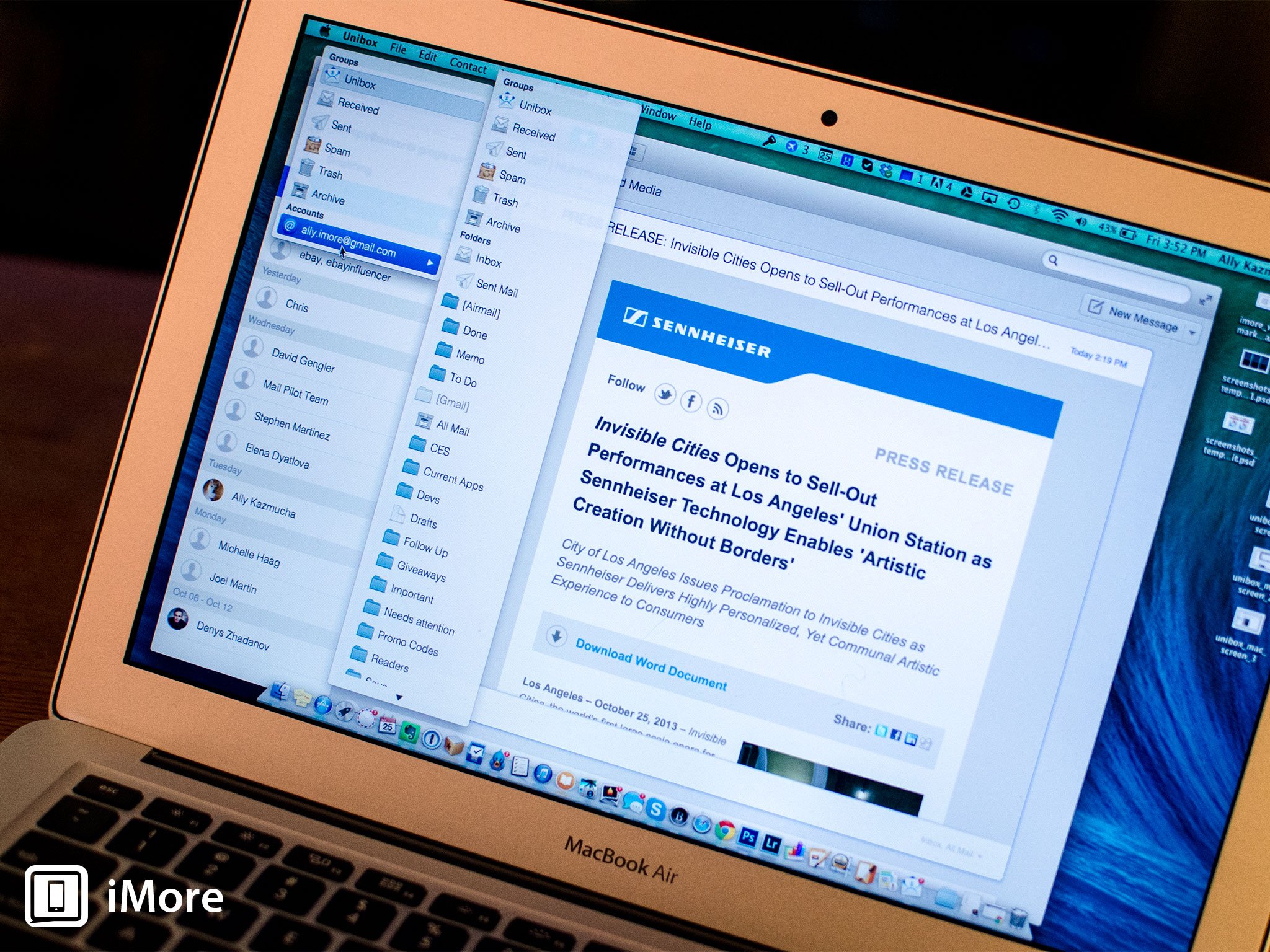
Unibox for Mac takes a new approach to how you view and interact with email
Unibox for Mac is a new and unique alternative email client for Mac. Most of us are used to using emails as an inbox system that works in order of when we received things. Unibox aims to change that by making email about the people we interact with more than just the strings of messages attached to them.
Upon launching Unibox, you instantly notice that it's quite a bit different than the standard inbox we've all become accustomed to. The left hand navigation pane is segregated by the people who have emailed us instead of showing lists of folders and inboxes. The list is sorted in order of date so you can go back in time and see when someone emailed you. If you have contact photos in your Contacts app for someone, their picture is filtered in as well.
Unibox supports many types of accounts including iCloud, Gmail, Yahoo!, Windows Live Mail, Exchange accounts that are IMAP enabled, and more. There's also support for lots of shortcuts when creating and archiving mail. The typical suspects are there as well such as Cmd + N to create a new message.
One of my favorite things about Unibox is its ability to let you toggle between attachment views and only view attachments sent between you and a contact. You can then download them from the server when available if they aren't there already. This makes it incredibly easy to find a file or attachment without weeding through countless emails.
You can drill down into folders you've already got set up in your current inbox easily using the top navigation. Unibox will then only show people relevant that are contained in that folder making it easier to pinpoint exactly the conversation you're looking for.
There are cons to this navigational style though. The huge and most obvious one being that when it comes time to sort certain conversations, it's just not as simple as dragging and dropping to folders. This can make Unibox unrealistic for heavy emailers that rely on folders or tags. You can right click any message and move it to a folder accordingly but it creates steps that folks who rely on folders regularly won't like.

The good

  • Beautiful interface that's simple and looks like it belongs in OS X
  • Drilling down into conversations is easier than ever with Unibox
  • Keyboard shortcuts make it easy to perform simple things like archiving, deleting, composing, and replying make emailing faster
  • Lots of different types of accounts are supported

The bad

  • No traditional inbox views will be a turn off to folks that rely heavily on drag and drop for folders and sorting
  • Sometimes conversations are missing if users have multiple emails and they aren't all in your address book

The bottom line

Casual emailers will never look at email the same after using Unibox, in a good way. The interface is refreshing as is the layout. Unfortunately, people that depend heavily on folders and being able to sort and sift through an inbox quickly will dislike the navigational layout and the inability to toggle to a unified inbox view. I can't help but feel if there was a happy medium or a way to view a traditional view, that'd make Unibox the best of both worlds.
If you happen to try out Unibox for Mac, let me know what you think in the comments. If you use folders often, do you find the layout inhibits you from being able to sort messages quickly and efficiently?

Friday, 25 October 2013

iPad Air vs. Retina iPad mini vs. iPad 2 vs. iPad mini: Which iPad model should you get?

Hybrid - 23:33
iPad Air vs. Retina iPad mini vs. iPad 2 vs. iPad mini: Which iPad model should you get?
2013 IPAD BUYERS GUIDE: HOW TO CHOOSE THE PERFECT NEW IPAD AIR OR RETINA IPAD MINI, OR LESS EXPENSIVE IPAD 2 OR IPAD MINI FOR YOU!
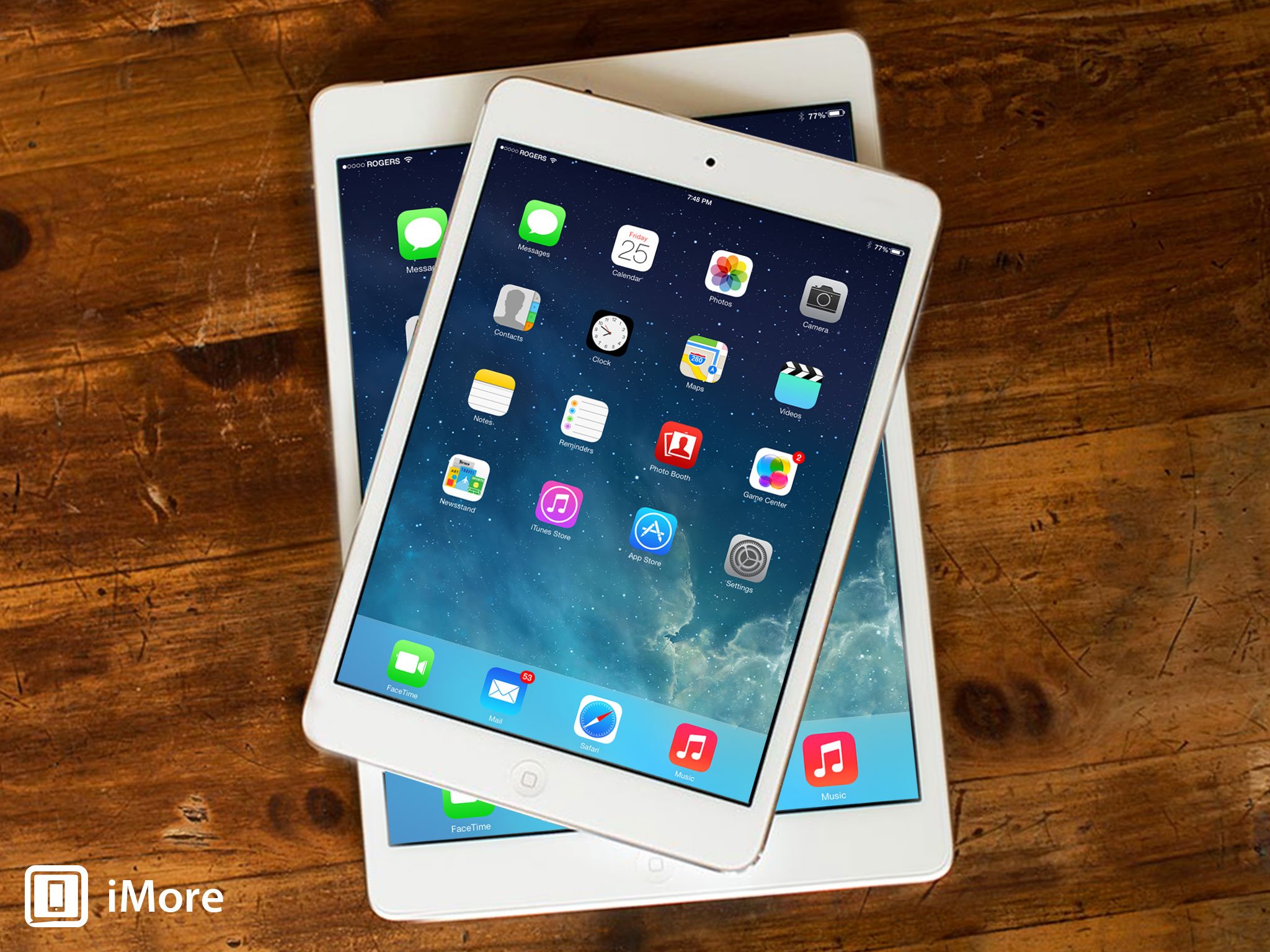
Once you're sure you're buying an iPad and now, the next step is to decide which iPad you're going to get. And this year, it's a tougher decision than ever. The newiPad Air and Retina iPad mini are identical in every way but screen size, 7.9- vs. 9.7-inches the only differentiator. If money is incredibly tight, though the old iPad 2 is a bit cheaper, and the old iPad mini, a cheaper still. No matter which one you choose, however, you'll be paying hundreds of dollars. Either a few, or a lot. So do you go with big or small, old or new? Which iPad should you get?

Current iPad models and price points

Current iPad models and price points
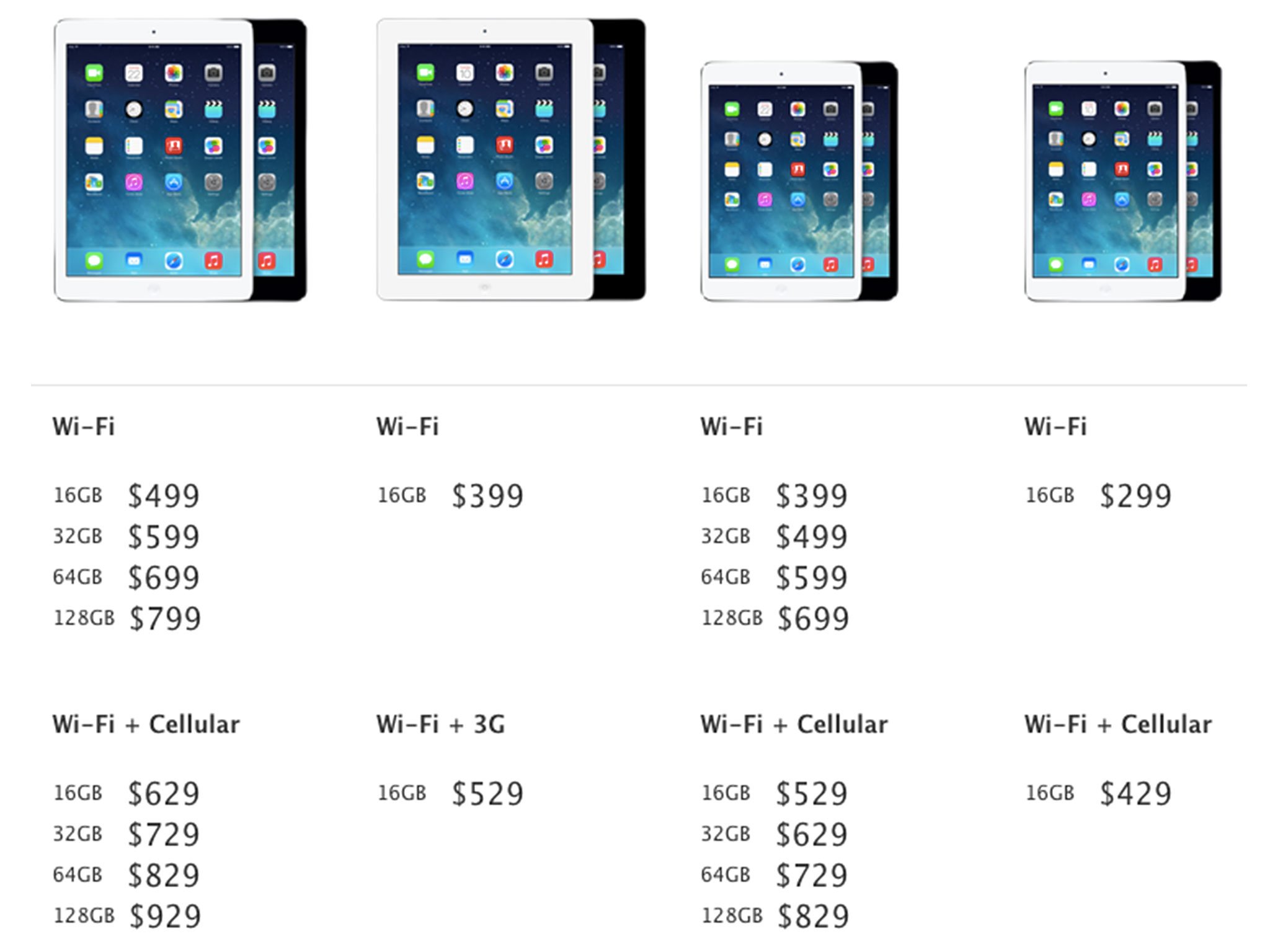
Apple's 2013 iPad lineup consists of 4 different models, the iPad Air, Retina iPad mini, iPad 2, and iPad mini. The iPad Air and Retina iPad mini have 16GB, 32GB, 64GB, and 128GB storage options, in either Wi-Fi only, or Wi-Fi and cellular models. The iPad 2 and iPad mini come only with 16GB, but still have Wi-Fi only, or Wi-Fi + cellular models. That makes for a dizzying array of possibilities.
Yes, both the new Retina iPad mini and the old iPad 2 start at $399. Wacky.

Up-front vs. total cost of ownership

The original iPad mini starts at $299, making it the cheapest iPad ever. The iPad 2 starts at $399. Both cost less up-front than the new Retina iPad mini, which starts at $399, and the new iPad Air which starts at $499. That can be a considerable difference up front, $200 or $100 at the very least, depending on the exact model and options you choose. That's real money, in your pocket, for rent, for food, for car payments, for school, or for other important things in your life.
However, if you keep an iPad over the course of a year or two, $100 or $200 isn't that much spread over the course of that time. In some cases, it's less than $10 a month, for a much better screen, a much better processor, and more.
If you have absolutely no money to work with, the iPad mini is good tablet and the iPad 2 an okay one. I'd recommend the Retina iPad mini over the same priced iPad 2 every day of the week, but if you absolutely need the bigger screen and that's all the money you have, that's what you need and what you have.
If money isn't your biggest consideration, go for the iPad Air or Retina iPad mini.

Finite vs. future-proof

iPad Air and Retina iPad mini: Should you upgrade?
Apple is pretty good about supporting older devices. The 2011 iPad 2 is still be sold in stores, after all, and is compatible with iOS 7. However, compatibility comes with compromise. Older generation iPads have older generation hardware. They have lower screen density - standard instead of Retina - and outdated processors - Apple A5 instead of Apple A7. They also don't come with any storage options over 16GB - not 32GB, and certainly not 128GB.
So, while the iPad 2 and original iPad mini might have gotten iOS 7 this year, and be able to run iOS 7 apps, the odds of them being able to run iOS 8 or iOS 9 in a couple of years isn't great.
Alternatively, the iPad Air and Retina iPad mini, their awesome Retina displays, beefy 128GB storage options, and monstrous Apple A7 processors should last you for years to come.

Who should get an original iPad mini?

The iPad mini launched in October of 2012, and comes with a Lightning adapter. Aside from that, it's all old tech. Standard display instead of Retina, and Apple A5 processor instead of Apple A7. The current version does come with Wi-Fi or Wi-Fi + cellular options, but with only 16GB of storage, which isn't much these days.
If there's any way for you to save up an additional $100 for the Retina iPad mini, or better still, $200 for the 32GB Retina iPad mini, you'll have a much, much better experience. Otherwise, if you really want an iPad, and you've got $299 earmarked for it and not a penny more - or you're equipping a school or business by the score - get the iPad mini and enjoy.

Who should get an iPad 2?

The iPad 2 launched in April of 2011. It has no Lightning connector, a standard display instead of Retina, an Apple A5 processor instead of an Apple A7, and while it has Wi-Fi or Wi-Fi and cellular options, it maxes out at 16GB of storage, which can be hard to manage.
You might want to consider a Retina iPad mini for the same $399. If you can save up even $100 more, a 32GB Retina iPad mini is great, and a 16GB iPad Air is also go. For $200 more, you can get a state-of-the-art 32GB iPad Air. Otherwise, if you really want a full-sized iPad, and you've got $399 in your pocket and that's it - or you're equipping students or employees by the score - get the iPad 2 and enjoy.

Who should get a Retina iPad mini?

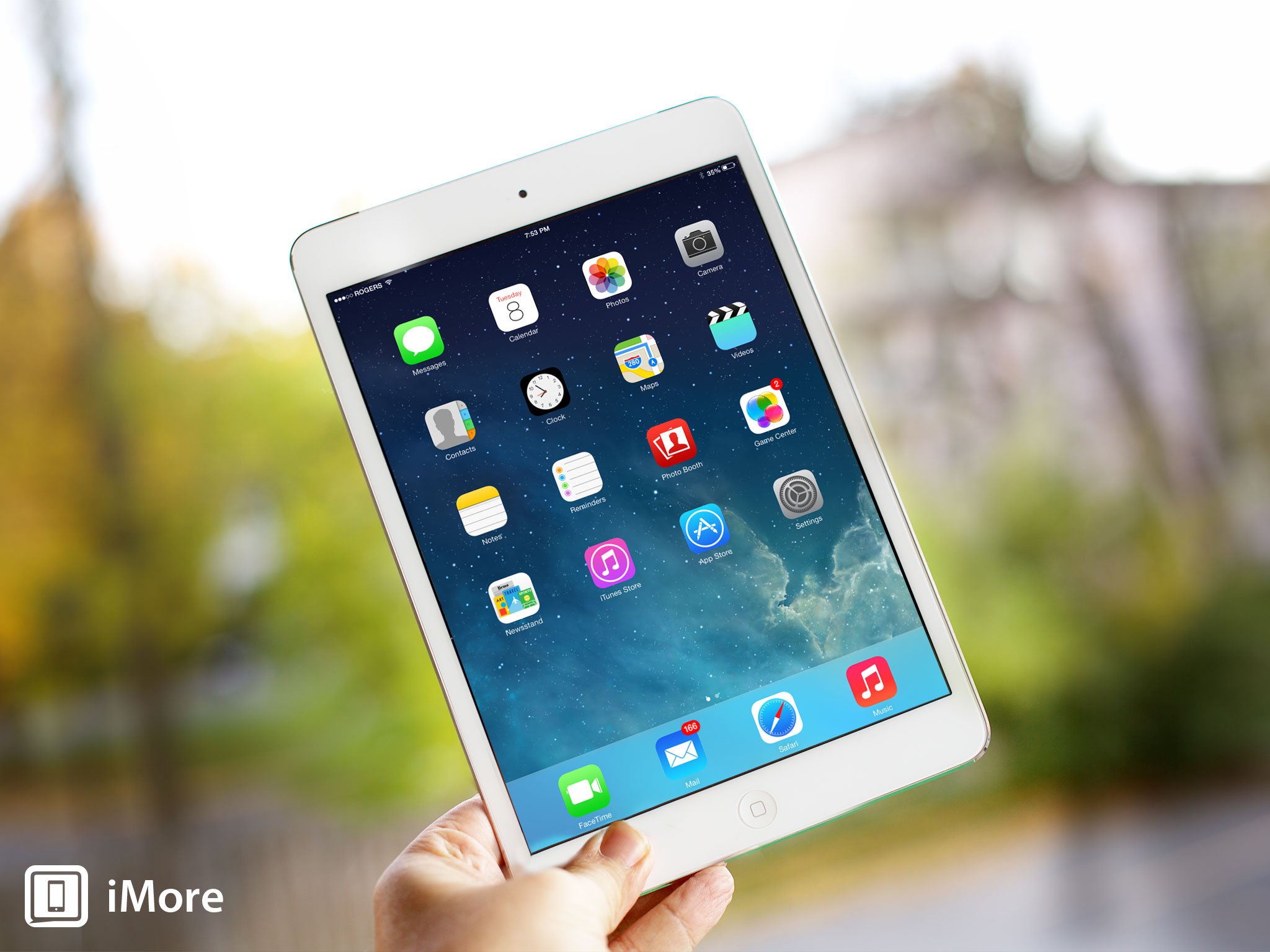
The Retina iPad mini comes packed with 7.9-inches of 2048x1536 Retina display and a smoking fast Apple A7 processor. It's identical in every way but size, weight, and price to the iPad Air. That means choosing between them comes down to $100 and just about 2-inches.
If price is a consideration, the Retina iPad mini is a fantastic tablet, and starts at just $399. If size is a consideration, the Retina iPad mini is better if you want to travel with it, use it as a mobile hotspot, and otherwise value portability the most. (It'll fit in a back jeans pocket if it has to.) If either of those things are appeal to you, get the Retina iPad mini.

Who should get an iPad Air?

The iPad Air is the current top-of-the-full-size-line iPad. It has a 9.7-inch, 2048x1536 Retina display and screamer of an Apple A7 processor. Aside from size, weight, and price, however, it's pretty much identical to the Retina iPad mini. So, your choice boils down to an extra $100 for an extra 2-inches.
If money is no object, the iPad Air starts at $499 and is the best big tablet on the market today. If size is something you're debating, the iPad Air is primed for people who use it around the house, office, or school, and otherwise put productively ahead of portability. (Those extra inches can come in handy.) If any of that resonates with you, get the iPad Air.

Still undecided?

If you're still having trouble choosing between the iPad mini, iPad 2, Retina iPad mini, or iPad Air, jump into our iPad discussion forums and the best community in mobile will happily help you out.
Bottom line, don't spend money you don't have, but don't skimp if you don't have to. Your iPad will be one of the most often-used, most important possessions in your life for months and maybe years to come. Get as much iPad as you can reasonably afford, and then enjoy!

Apple's new Mac iWork apps: A big step back in workflow automation

Hybrid - 23:32
Apple's new Mac iWork apps: A big step back in workflow automation
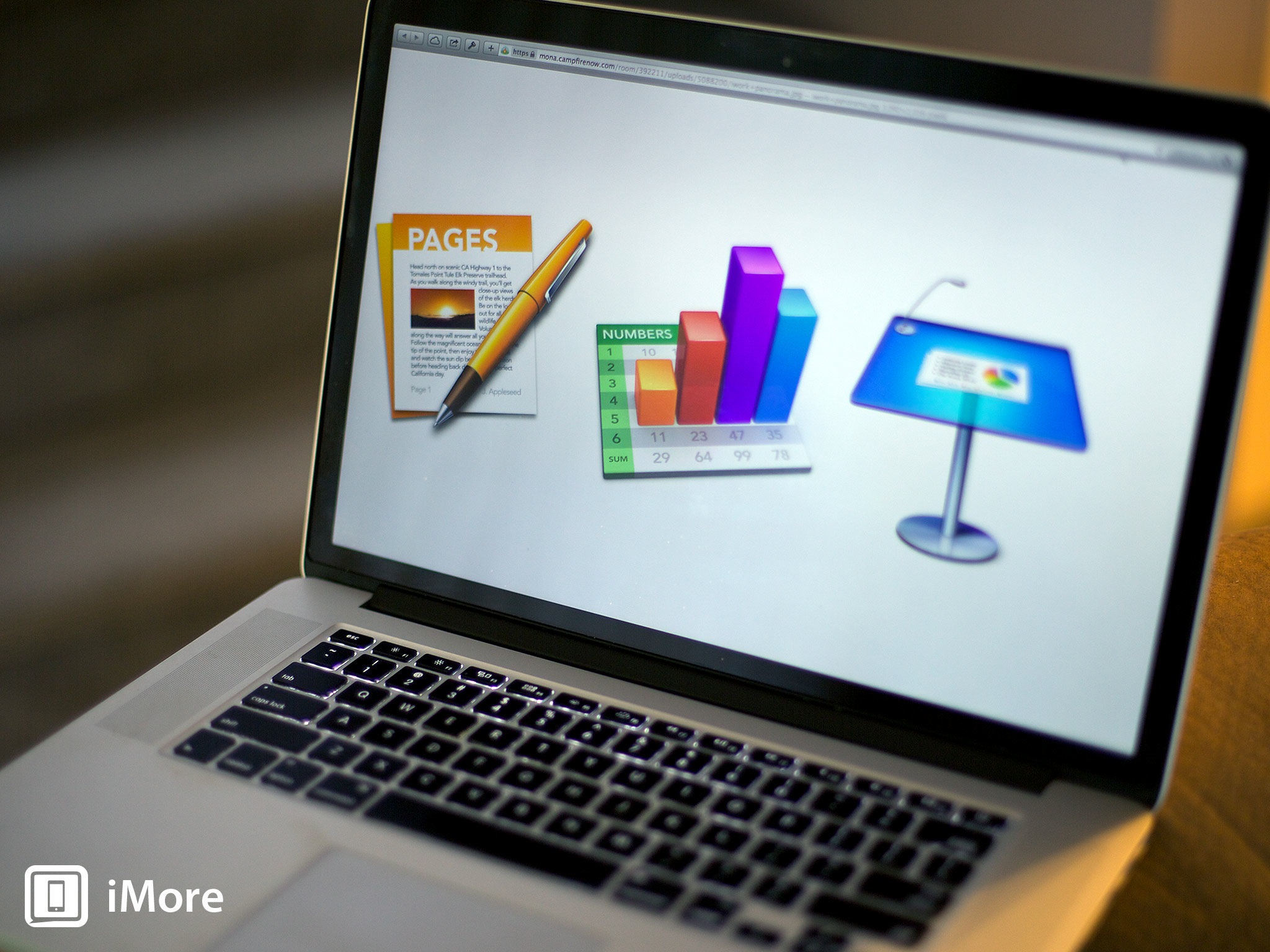
On Tuesday evening Apple posted updates to its iWork apps for Mac - Pages, Keynote and Numbers. Featured during Apple's iPad and Mac event in San Francisco, the new versions of iWork apps sport new features, more thorough iCloud integration and an a unified file format compatible with their iOS counterparts. But there are some important pieces missing for users interested workflow automation, according to Clark Goble, who maintains Clark's Tech Blog. (Goble's post has been widely linked, so you can find a cached copy at Fireballed.org if the original doesn't load for you.)
I know I have a huge number of scripts — often with complicated hacks to get around the limits in Pages and Number’s incomplete Applescript Dictionaries.
Here’s the bad news. They won’t work now. Effectively Applescript support is gone. Numbers doesn’t even have a dictionary. And Pages has had nearly everything removed.

AppleScript support went from bad to worse

If all this AppleScript talk is making your head spin, let's give you some concrete ideas of what I'm talking about. Opening the AppleScript dictionary of the old version of Pages yielded this:
Here's what opening the AppleScript dictionary of the new Pages looks like:
As you can see, the new version has a lot less functionality that the old version it replaces.
Eddy Cue pointed out on Tuesday that the new iWork apps are a complete rewrite from the replaced four-year-old versions (whose codebases are even older than that). So I'm reluctant to describe the relative absence of AppleScript support asremoval, as much as it is omission. If this had been an incremental change to the codebase, removal would be a perfectly adequate word. But this isn't. The new iWork apps are totally new. And in some respects, totally different. The absence of most AppleScript functionality that was there before is what caught Goble's eye, but it isn't the only change.
And as Goble points out, even before now, iWork apps haven't been a shining paragon of AppleScript virtue. iWork apps aren't the only Apple-made products that suffer from limited automation support. On balance when it comes to AppleScript, Apple is a somewhat lousy and really inconsistent eater of its own dog food. I've never been able to figure out why.
Apple's decision to make iWork apps free with the purchase of new hardware is a shot across the bow of Microsoft, which gives away its Office software on its beleaguered Surface tablet. Clearly it helps keep Apple on competitive terms for new iPad and Mac owners who are looking for useful productivity software.
The irony is that Microsoft supports AppleScript in Office more thoroughly than Apple does in its iWork apps. Perhaps that shouldn't be any terrific surprise, as you're likely to find Office in most business environments, especially corporate locations where IT departments are capable of whipping up and supporting AppleScripts to improve the productivity of the workers they support.
Getting back to iWork for a moment, clearly the priority on this release wasn't on workflow automation, or making sure iWork apps had every feature and function they did before - it was on aligning the Mac version of iWork much closer with its iOS counterpart, and creating a common user experience that translates well between devices.
Apple's succeeded on that point, and they've made plenty of embellishments to make some users looking for new features and functionality happy. But AppleScript and other long-standing features are gone. Take a look at this thread about Pageson Apple's discussion site alone to get a sense of what diehard Pages users are saying.

Consumers versus professionals

I work part-time at an Apple reseller. "Does this include Office?" is one of the first questions I get from customers who come in looking at the iPad or the Mac. Up until now, I've had to say no, and then either try to sell them a copy of Office for the Mac or explain to them about the iWork apps and the Mac App Store. It's much easier to explain that Office isn't included, but Apple's own Office-style apps are(and they're capable of reading and producing Office-compatible files). It's one less barrier to entry for prospective buyers of new iPads and Macs.
Entry level consumers, by and large, aren't interested in AppleScript. It's too techy for them, it requires too abstract an understanding of how applications and the system work with one another. But that lowest common denominator consumer doesn't represent the entire spectrum of Mac users. A lot of people depend on Macs to help run their businesses efficiently. And for many of them, workflow automation represents improved productivity, better return on investment, and better usability. It's about getting better results with less process. AppleScript support can be a key differentiator for those customers.

Reversing the course

To be clear, unless you've done something unusual with your iWork installation, you should still have the old apps inside an iWork '09 folder in your Applications folder, and they should still be functional (at least they are in the two machines I've upgraded with the new software - as in all things, your mileage may vary). If you've upgraded to the new releases and you don't like them, you should still be able to use the old ones - albeit with the limitations they've always had, and without the new features like round-trip iCloud support between OS X and iOS.
But this whole issue unveils a more fundamental problem: by neglecting AppleScript support in iWork apps, Apple underserves customers who would otherwise use their products - not just big companies with IT departments, but freelance workers who want to save time, small and medium-sized businesses that benefit from workflow automation tools, and others. AppleScript may be techy, but it's pretty democratic - anyone who wants to use it should be able to use it.
Mavericks is plainly aimed at helping people who use Apple devices every day to get the most out the experience - besides the relatively mild interface adjustments and new apps, the underlying operating system has been bolstered to improve efficiency and performance.
If Apple's iWork developers aren't already hard at work restoring some of this functionality, they should be, for exactly that reason. By excluding AppleScript - and, quite frankly, dumbing down the apps - Apple's gone the exact opposite direction with iWork - they may have improved some core functions (like iCloud sharing and file interoperability) while completely demolishing others in the process, making it less efficient to use the new iWork apps.
I'm not one to trumpet the "iOSification" theory, that Apple is trying to make the Mac the same as iOS devices - in fact, I've been an outspoken critic of that idea. And I don't think that's the case here.
What I suspect happened is that Apple needed to streamline development of the new iWork Mac apps by making them as similar as possible to their iOS counterparts. They took the path of least resistance, and we're left with less capable software that's prettier to look at.
That's not something that Mac users should just roll over and accept. Our Macs are more capable than our iPads. And we should insist that developers of Mac apps - Apple and third-parties alike - help us get the most out of that experience, not get in our way.

iPad Air and Retina iPad mini: Should you upgrade ?

Hybrid - 23:29
iPad Air and Retina iPad mini: Should you upgrade?
2013 IPAD BUYERS GUIDE: HOW TO DECIDE IF YOU SHOULD UPGRADE TO APPLE'S LATEST LARGE OR SMALL SIZED IPAD!
When a new iPad hits the market - or two iPads, as is the case right now - one of the hardest decisions we face is whether or not to upgrade from and original iPad,iPad 2iPad 3iPad mini, or iPad 4 to the latest and greatest. If you have unlimited funds, you can just buy everything, all the time. Most of us don't, however, so we need to check out the new features of the iPad Air or Retina iPad mini, see how they compare to what we already have, and decide if the difference is worth the price of an entirely new device, a price that starts at $399 and $499 and goes well up from there. So, is there enough value to justify the cost? Let's take a look!

iPad evolution

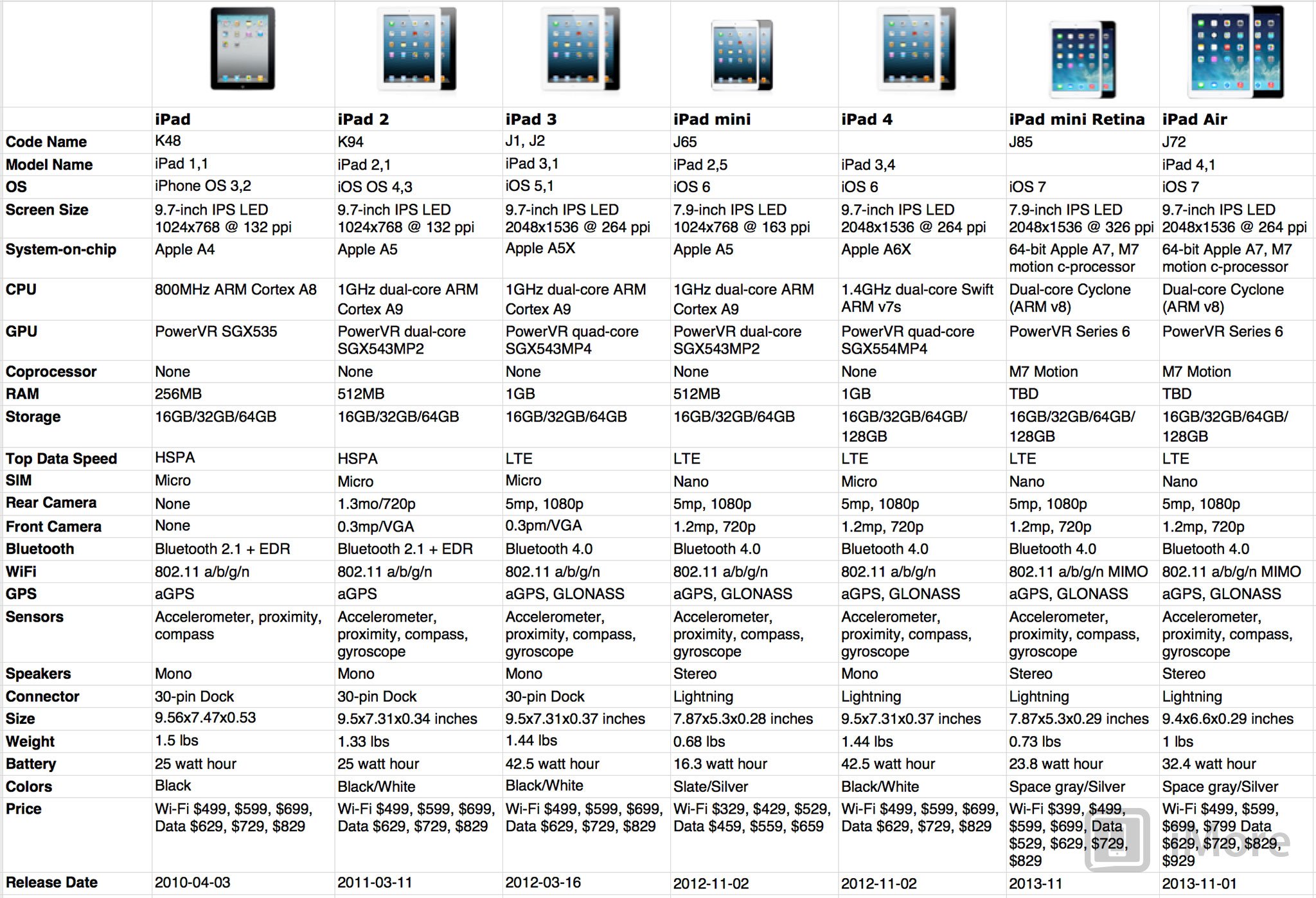
Since Steve Jobs first unveiled it at a special event in 2010, the iPad has improved steadily in one way or another. The iPad 2 was thinner, lighter, and faster. The iPad 3 got a Retina display and LTE. The iPad 4 went Lightning. The iPad mini dropped back to iPad 2 tech, but in a much smaller form factor. The above chart shows the evolution of the iPad from the original to the latest Retina iPad mini and iPad Air, including pricing and capacity at launch. While what you paid for it when you got it might vary, you can check your current model and see how it compares to the ones available now.

iOS 7 compatibility

The ability to run iOS 7, and to be compatible with iOS 7 apps, is a major consideration. The original iPad can't run iOS 7 (it couldn't run iOS 6 either, mind you, but it's only going to get worse from here.) The iPad 2 and original iPad mini can run iOS 7, and are still being sold by Apple, which means that, even though they're outdated, they should still enjoy support for a while. The iPad 3 was graphically underpowered from launch, and while it can run iOS 7, it'll be at redline, and won't be ideal. The iPad 4 can run iOS 7 just fine.
If you're on an original iPad, you'll seriously want to consider upgrading. If you're on an iPad 3, you'll want to consider it as well.

Retina displays

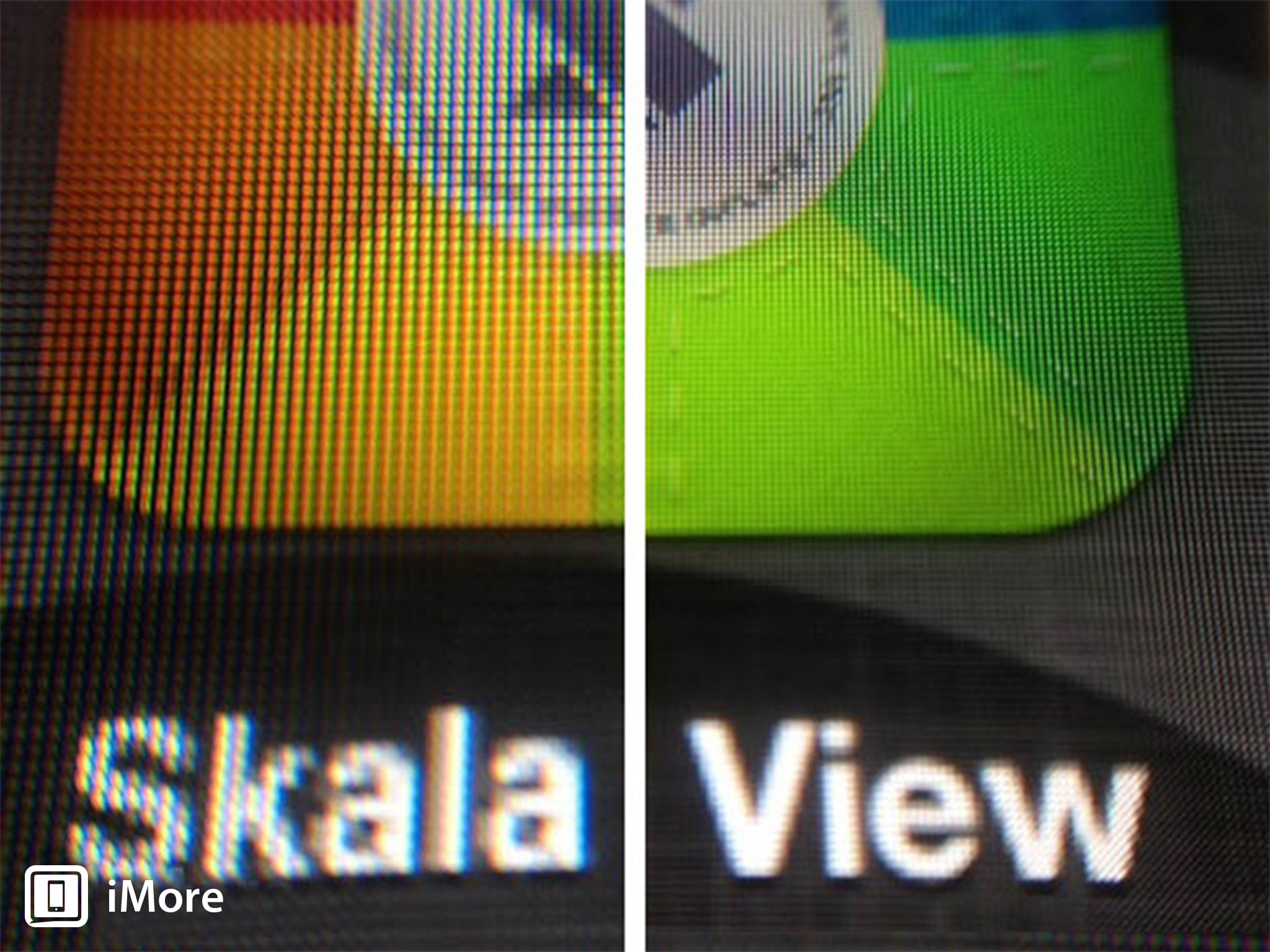
The iPad 2 and original iPad mini both have standard density 1024x768 pixel screens. So, while both are similarly powered, and both can run iOS 7 apps, neither look as good as their Retina counterparts. This is most noticeable with small text in ebooks and web pages, or the thin lines in iOS 7 glyphs and other interface elements. Even photos won't look as crisp and clear on standard displays as they will on Retina.

Apple A7 processors

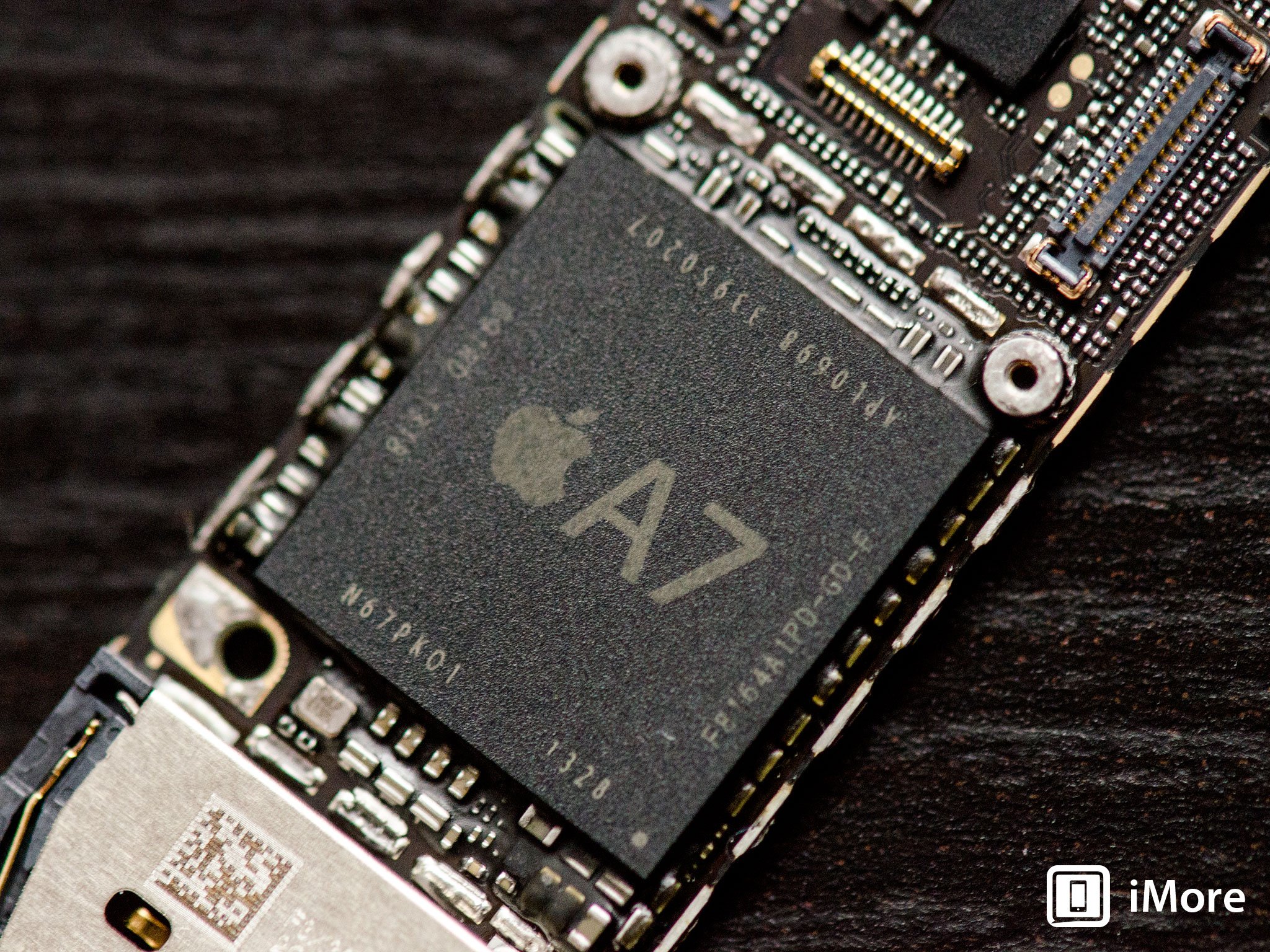
Everything you need to know about Apple's all-new 64-bit A7 system-on-a-chip, and the next generation Cyclone processor
The original iPad debuted with Apple's first branded chipset, the A4. The iPad 2 introduced the A5, which was also used in the iPad mini. The iPad 3 launched with the A5X, which, thanks to the high-density Retina display, struggled under heavy graphical loads. The iPad 4 had the Apple A6X, based on Apple's first custom CPU, the Swift, and had plenty of power. Both the iPad Air and Retina iPad mini have theApple A7, the same chip found in the iPhone 5s, and the 64-bit Cyclone monster inside it. Desktop-class, it has power unseen in mobile before. It also has the Apple M7 motion coprocessor, which provides energy efficiency and sensor fusion advantages. It's... badass.

LTE 4G networking

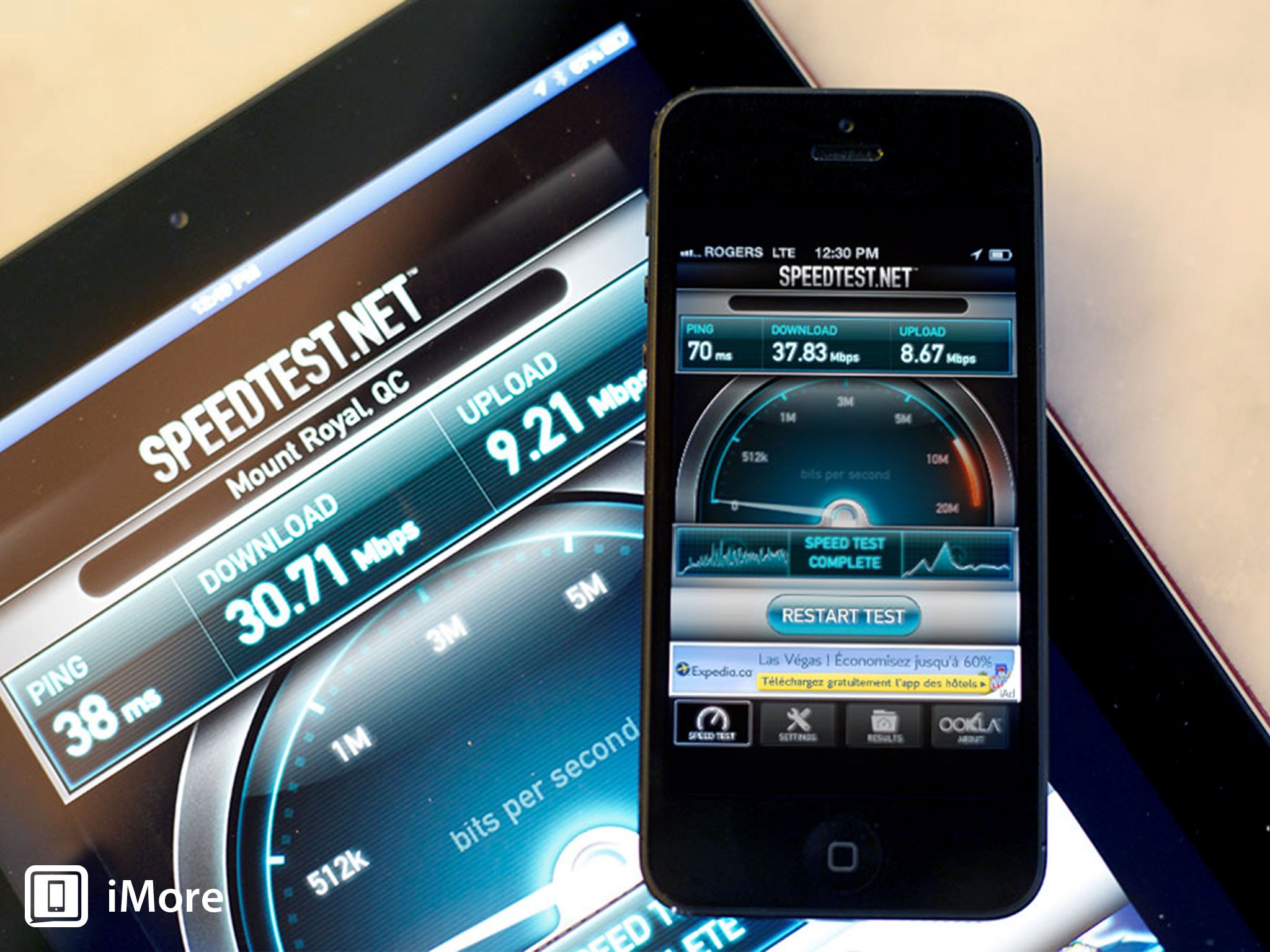
The original iPad and iPad 2 don't offer LTE 4G networking. The iPad 3 does, but very limited bands that didn't offer much support outside North America. The iPad 4 and original iPad mini both had good support for international LTE bands. The iPad Air and Retina iPad mini offer even more bands, for even more places.
If you live in an area of the world where the iPad previously hasn't worked on LTE, the new models are worth looking at.

FaceTime HD and iSight Camera

The original iPad had no cameras at all. The iPad 2 added them for the first time, but they weren't great. The iPad 3, iPad 4, and original iPad mini both had better cameras, at least as far as tablet cameras go. The iPad Air and Retina iPad mini both have improved FaceTime HD cameras with back illuminated sensors and larger sensors. The iSight cameras are the same as last year, but the Apple A7chipset's image signal processor (ISP) should allow for slightly better results overall.
Again, the original iPad fares poorly here, since cameras are a good thing to have. There's not enough difference between the other iPads, when it comes to cameras, to make them a substantial upgrade consideration.

Lightning connector

The original iPad, iPad 2, and iPad 3 all have the old 30-pin Dock connectors. While there remain an enormous amount of accessories for that connector, all new iOS devices will be using the all-new Lightning connector going forward. That means those models won't have access to the latest and greatest.

Siri

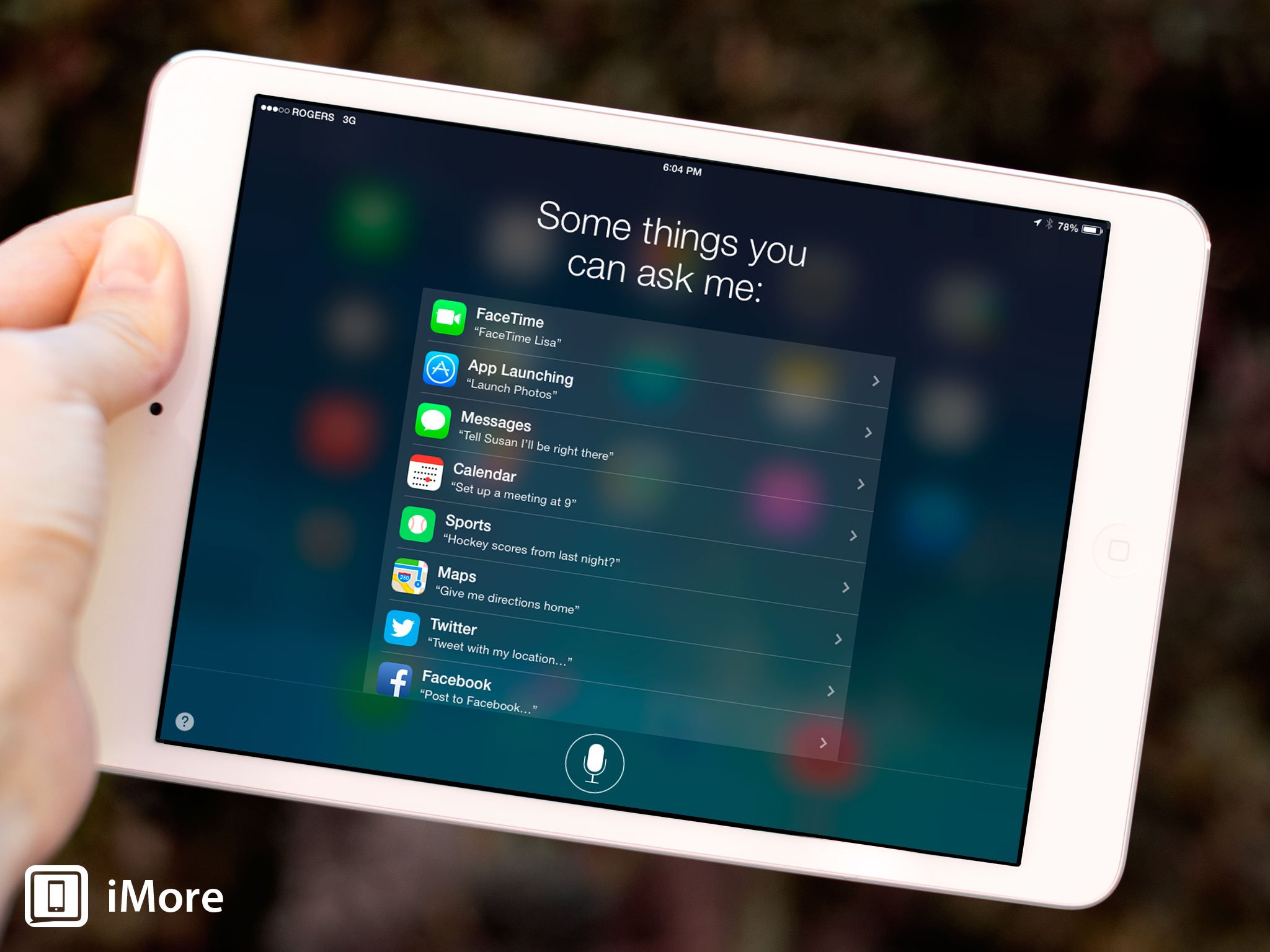
Neither the original iPad nor the iPad 2 have Siri, Apple's virtual digital assistant. The iPad 3, iPad 4, and original iPad mini all do. Although it's a secondary, natural language-based interface layer, Siri does provide all sorts of benefits, including hands-free control, and faster workflows for many built-in apps.

Should you upgrade from the original iPad?

The original iPad, released in 2010, was an amazing product. For its time. And that time is now over. It hasn't gotten a software update since iOS 5 in 2011, and won't be getting one ever again. It has no LTE, no cameras, no Lightning connector, and no Retina display. Fewer apps will support it in the future, and fewer accessories.
The iPad 2 and original iPad mini are cheaper options (starting at $399 or $299), but they'll run into the same problem as the original iPad and sooner rather than later. An iPad Air (starting at $499) will give you the same screen size but at a much smaller size and lighter weight. The Retina iPad mini (starting at $399) will give you an even more portable form factor, if that's important to you. Both will give you a fantastic screen, all the latest hardware features, and the ability to use all the latest apps and accessories.
If the original iPad still works for you, that's great. Ride it into the sunset. If you want to keep moving forward, however, and you can afford it, upgrade soon.

Should you upgrade from the iPad 2?

Apple still sells the iPad 2, and people still buy them, so it's not a completely outdated tablet. At least not yet. However, it doesn't have a Lightning connector, it doesn't have an LTE networking option, it doesn't have a Retina display, it doesn't have an Apple A7 and M7 chipset, and while it can run iOS 7, it can't run Siri.
The original iPad mini, cheap as it is now, isn't really an upgrade. It does have Lightning and Siri, but it's otherwise the same hardware as the iPad 2. An iPad Air (starting at $499) will give you the same screen size but at a much smaller size and lighter weight. The Retina iPad mini (starting at $399) will give you all the new features but in a more portable form factor, if that's important to you. Both will give you a fantastic screen, all the latest hardware, and a significant performance boost to boot.
If none of those things appeal to you, the iPad 2 remains a viable tablet. If, however, you want any of those things, and you want to future-proof yourself so that, when next year's updates come around, you're ready for them, you can look at the upgrades.

Should you upgrade from the iPad 3?

The iPad 3 has a Retina display and limited support for LTE, primarily for North America. However, it's Apple A5X processor is maxed out simply trying to run that huge display, and that makes it less than ideal for hardcore gaming or any other graphically intensive operations. It also lacks a Lightning connector, and is slightly thicker and heavier than an iPad 2. It runs iOS 7, though not incredibly well, and it does have Siri.
Released in the spring of 2012, the iPad 3 is by no means old, even if it is already outdated. It's a perfectly fine tablet for most people, but because of its strained GPU, it's not great for everyone.
Both the iPad 2 and original iPad mini, cheap as they are, would be downgrades in most ways (they perform slightly better, but only because they have far fewer pixels to push around.) An iPad Air (starting at $499) will give you the same screen size but at a much smaller size and lighter weight. Much. The Retina iPad mini (starting at $399) will give you all the new features but in a more portable form factor, if that's important to you. The screen is the same, or thereabouts, but the Lightning connector, and Apple A7 and M7 chipsets, are improvements. And both run iOS 7 like a dream.
You can absolutely get another year or more out of it, but if you have the money, and you are frustrated by performance, you may want to upgrade.

Should you upgrade from the original iPad mini?

The original iPad mini has a Lightning connector but lacks a Retina display. It has LTE but it's Apple A5 processor is two generations old now. It can run iOS 7, but not as well as the latest hardware. Still, it's a great tablet, and one Apple is still selling.
If the standard resolution screen scratches your sensitive eyes, then upgrading to the Retina iPad mini (starting at $399) not only gets you that, but the 64-bit Apple A7 processor. If you want both a Retina display, and a bigger display, the iPad Air (starting at $499) will give you everything the new iPad mini will, but take you from 7.9- to 9.7-inches.
Again, the original iPad mini is still a good tablet, and you can get years of use out of it, but it's an aging platform and if you have the money and want the latest and the greatest, both the iPad Air and the Retina iPad mini are worth considering.

Should you upgrade from the iPad 4?

The iPad 4 is great tablet. It has not only a Retina display, but its Apple A6X chipset has more than enough horsepower to drive it. It has more LTE bands to support LTE in more places, and it has a Lightning connector. It has almost everything, in fact, that the new iPad Air has.
Obviously, the iPad 2 and original iPad mini are steps backwards here, unless you have to have a more portable tablet and can't spend more than the iPad mini's $299 starting price to get it. Then it's a step diagonally sideways. You'd be better off going to the new Retina iPad mini (starting at $399) to keep the same great display, but in a more portable, much lighter package. Otherwise, if you want to keep the big screen, but absolutely need something lighter than you can hold up longer, the iPad Air (starting at $499) is the only real "upgrade" available.
Unless you do want that lighter form factor, however, or need one of the new LTE bands it supports, or simply want to get in on the 64-bit Apple A7 platform from the start, there's no compelling reason to upgrade from the iPad 4.

Remember: Sell your old iPad!

Though a new iPad might come with a big sticker price, remember that you can sell your current iPad to take a little bit of the sting off the top. In fact, if you plan on upgrading to an iPad Air or Retina iPad mini, selling your old iPad is a no brainer. Apple products hold their resale value very well. If you've taken good care of your iPad, you should have no problem finding it a new home and putting some cash in your pocket while doing it. Selling the old really does help you afford the new. If you're not sure how to sell, or if you just want to make sure you get the most money, or save yourself the most time and effort, possible, here's everything you need to know!
Previous
Editor's Choice